4. Connection — Assistant vs Manual (Self‑Hosted)
In Self‑Hosted mode the Settings → Microsoft 365 area offers a Configuration mode switch so you see only what you need. The choice is remembered per browser.
Assistant (default)
A clean, guided view for most admins.
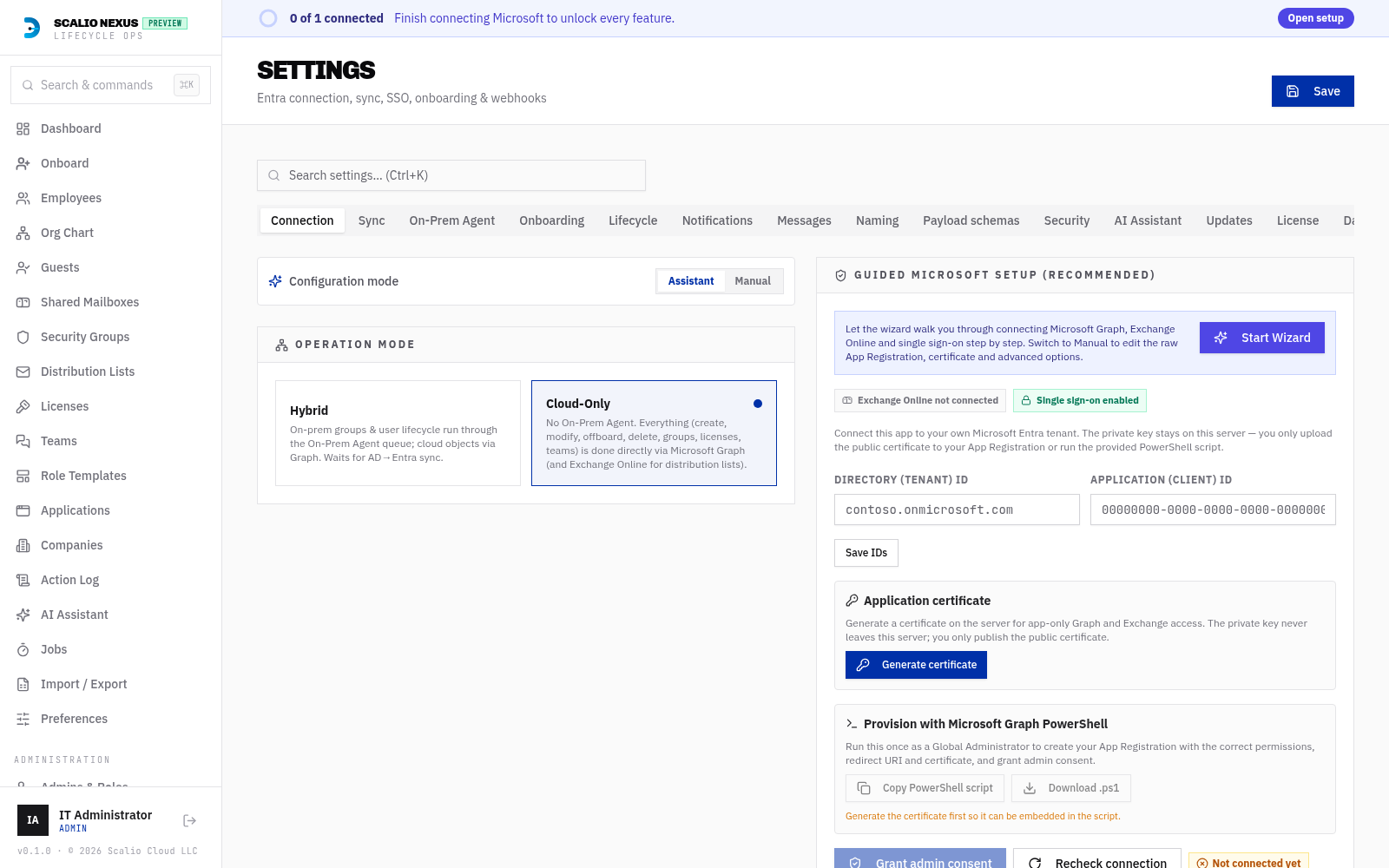
It shows:
- A Start Wizard button that opens the full Setup Wizard.
- Compact status chips: Exchange Online connected / not connected and Single sign‑on enabled / off.
- The Guided Microsoft setup card (certificate generation → PowerShell bootstrap → 1‑click consent).
- The auto‑managed Cloud Sync status card (see Cloud Sync).
Everything raw (App Registration IDs, certificate upload, the “Connect to Entra” toggle, Cloud Sync enable/disable, detailed EXO/SSO) is hidden to keep the happy path simple.
Manual
The full set of controls for power users.
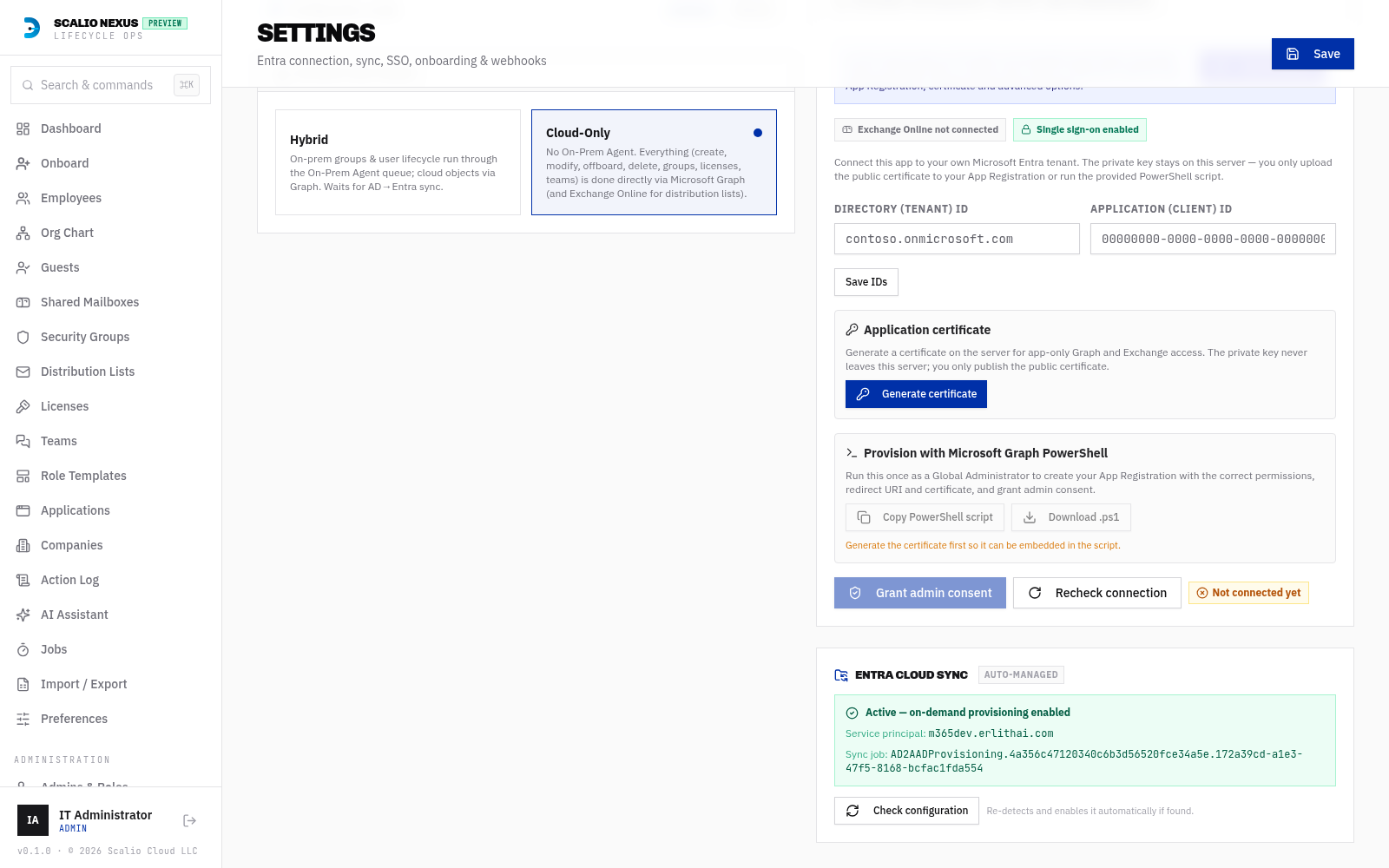
It shows the setup checklist, the Graph read source toggle, App Registration (Tenant ID, Client ID, certificate upload), Cloud Sync enable/detect, Exchange Online and SSO sections.
Guided Microsoft Graph setup
The guided card performs three steps:
- Generate certificate — the server creates a self‑signed certificate (valid ≤ 729 days, see
Certificates) and stores the private key; you get the public
.cer. - Provision the app — run the generated Microsoft Graph PowerShell bootstrap once as a Global Administrator. You can Copy PowerShell script or Download .ps1 — the script is not shown inline (so it never forces a horizontal scrollbar).
- Grant admin consent — a 1‑click consent link; on success the app flips to live mode and auto‑detects Exchange org + Cloud Sync.
The bootstrap script creates the app registration, attaches the certificate as a key credential (no explicit start/end dates — the cert’s own validity governs it), assigns the required Graph app roles and the Exchange
Exchange.ManageAsApppermission, and ensures the Office 365 Exchange Online service principal exists.