Partner Access — requesting & approving JIT access
Applies to: Both · License: Partner Access Governance & JIT PAM add-on · Permission: pam.view
This chapter is the day-to-day guide for operators and approvers. For the engine setup (partners, tiers, SIEM, MFA), see the admin chapter Partner Access Governance & JIT PAM.
Partner Access gives external vendors and contractors just-in-time, time-boxed access to specific accounts. Nothing is standing: accounts stay dormant and are only enabled for an approved window, then the password is rotated to a random value automatically.
Open it from Partner Access (section Access) in the left navigation. The Overview shows live KPIs (partners, target accounts, active sessions, open approvals).
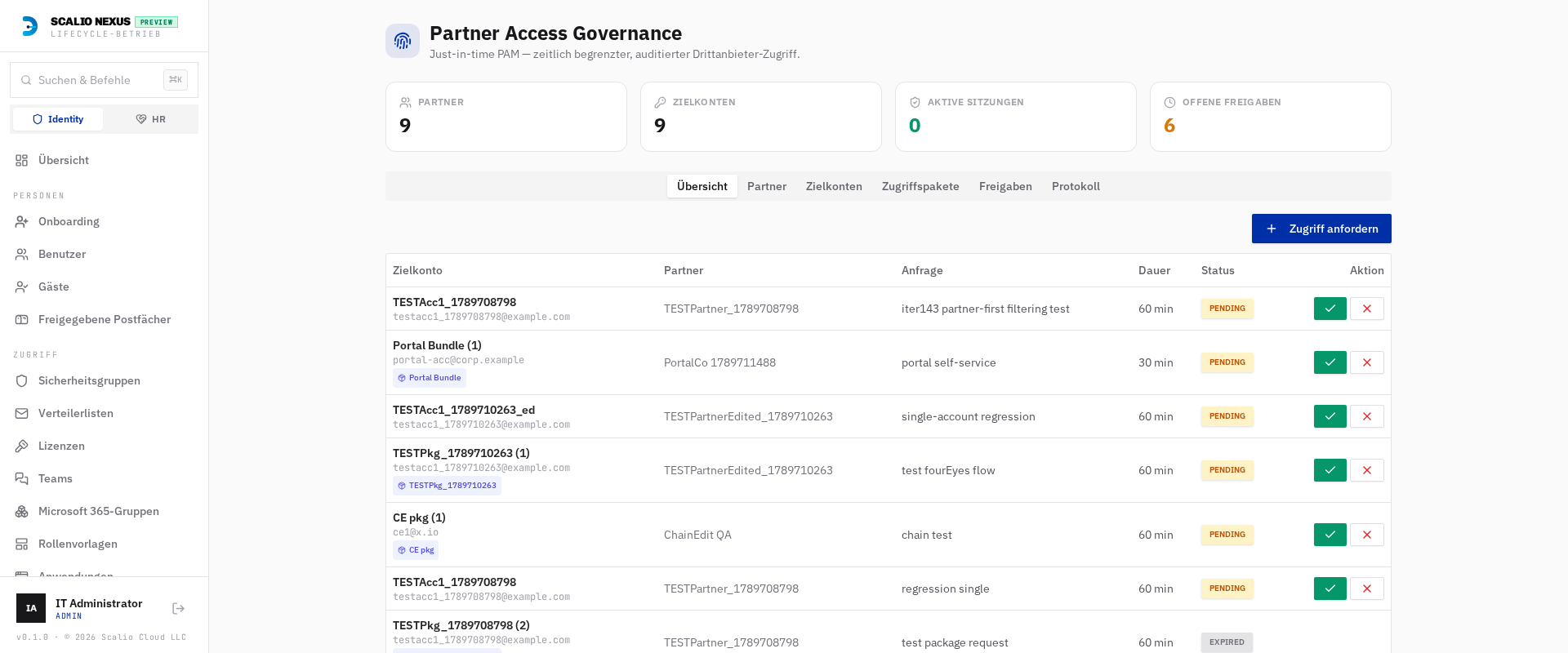
Request just-in-time access
- Open Partner Access and click Request access.
- Choose the partner first — this filters what you can target.
- Pick a target: either an access package (grants several accounts at once) or a single target account.
- Enter a reason, an optional change-ticket reference, and the duration (minutes).
- Submit. The request either auto-approves (if it falls inside a maintenance window and the change ticket matches the configured pattern) or goes to pending for approval.
Once approved and its start time arrives, the engine activates the account(s) and e-mails the recipient a one-time retrieval link — never the password.
Approve or deny a request
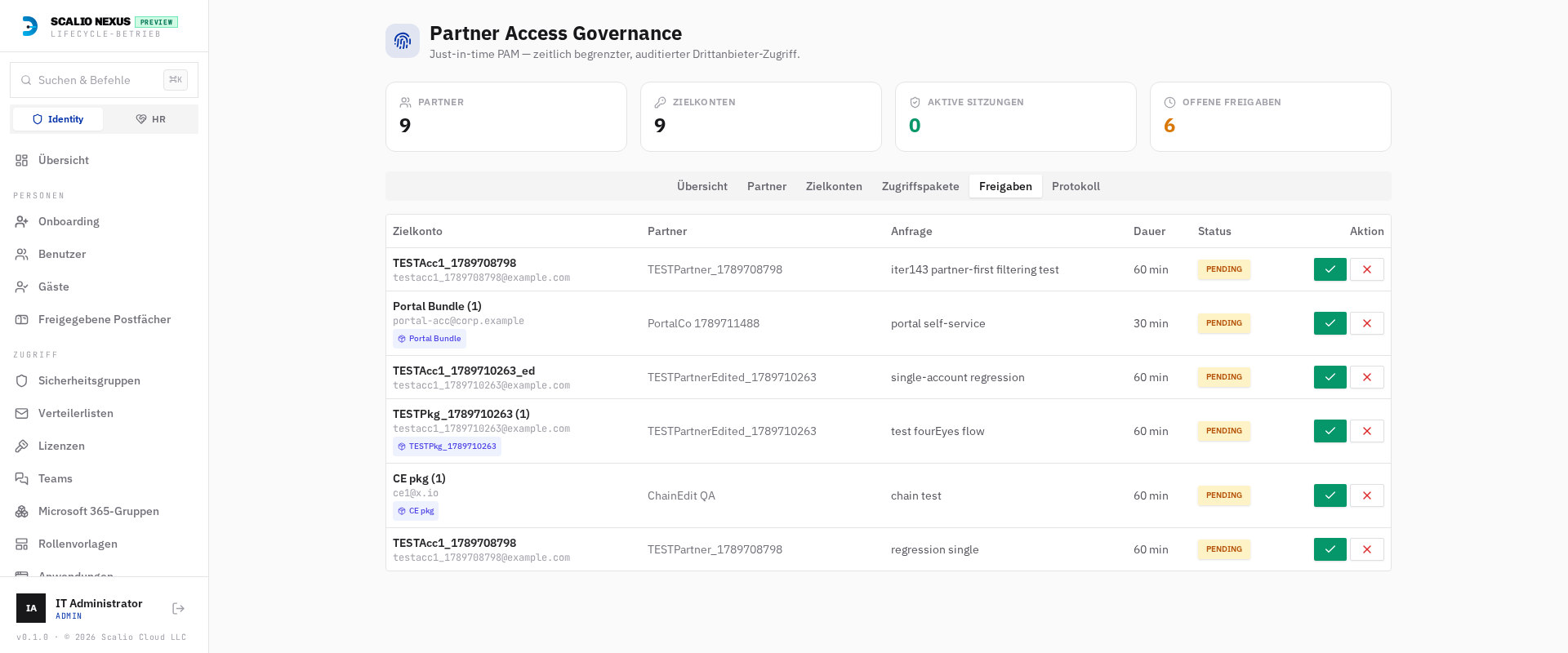
- Go to the Approvals tab — it lists every request awaiting your decision.
- Review the partner, target, reason and ticket, then Approve or Deny (with a reason).
One-click approval from your inbox
When a request needs your approval you also receive an email (and a Teams notice) with Approve and Deny buttons. The button opens a short confirmation page carrying a personal, single-use, time-limited link — no console sign-in required. The link's lifetime is set in Settings → Partner Access → One-click approval link TTL.
Depending on the chain, a request may need one approval, two (four-eyes), or every approver in order (sequential). You can approve a given request only once; a denial closes it immediately.
Retrieve the credentials
The recipient opens the link from the approval e-mail:
- Complete the MFA step — enter a code from your authenticator app, or use your passkey.
- The credential(s) are shown once. For an access package, every account's credential is listed with a copy button. Copy what you need immediately — the link is single-use and expires.
End access early (check-in)
When you're done before the window ends, open the active request and click Check-in. The engine immediately rotates the password to a random unrecorded value, disables the account(s), removes the JIT groups and revokes sessions. (If you don't check in, the same thing happens automatically at expiry.)
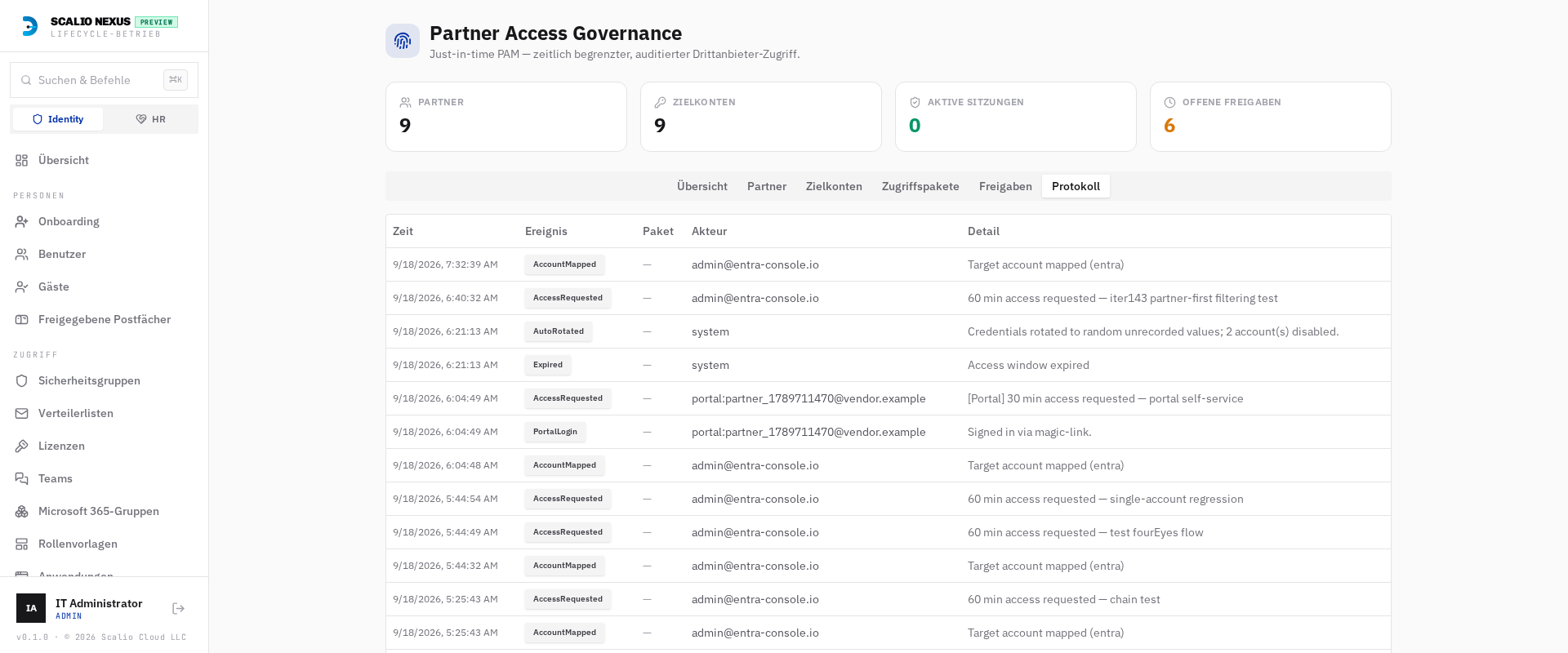
The Log tab
Every action — requested, approved, activated, retrieved, checked-in, expired, rotated — is recorded on the Log tab with the time, event, actor and detail, giving you a complete audit trail per partner. When a request targets an access package, the package name is shown on both the request row and each log entry.
For external partners — the self-service portal
Partners can raise their own requests at the public portal (/pam/portal) instead of asking an operator:

- Enter your work e-mail and request a sign-in link (only authorized partner contacts receive one), or sign in with a passkey you enrolled earlier.
- After signing in, optionally enrol a passkey for next time.
- See the access packages assigned to you, submit a request (reason, change ticket, duration), and track your request history with live retrieval links.
Approvals still run through your customer's normal approver chain, and access can't extend past the partner's contract end date.